From small business owners to full-time content creators, everyone is looking for ways to make videos more engaging, professional, and shareable. For years, CapCut has been the go-to app for quick, polished edits. But as creators push for more advanced tools and flexibility, the search for a powerful CapCut alternative has become inevitable.
According to Grand View Research, the global creative software market is projected to reach $17.98 billion by 2030, driven by the explosion of short-form video content. As this transformation continues, the question is no longer whether CapCut is good enough, but whether there are better alternatives to CapCut for video editing that offer greater creativity, control, and scalability.
To uncover the truth, I tested and reviewed ten of the best CapCut alternatives across mobile and desktop platforms. In this detailed guide, I will share my honest insights into the top CapCut alternatives worth your attention, the ones that truly empower creators to edit smarter, faster, and better.
See also: 5 Best Image to Video AI Tools for Creators and Entrepreneurs
Key Takeaways
- CapCut is great for beginners, but switching to an alternative offers more advanced tools and creative control.
- From InShot and VN to Filmora and DaVinci Resolve, there is an option for every skill level.
- Many free CapCut alternatives deliver professional-quality results without the premium price tag.
- Some CapCut alternatives offer faster rendering, richer audio, and smoother export workflows.

CapCut
Video editing apps go beyond filters and transitions; they are about creativity, control, and consistency. For me, CapCut checked most of those boxes when I started. It became my go-to tool for editing short videos, adding captions, syncing music, and creating smooth transitions with ease.
For a while, CapCut met all my needs, from social media clips to brand promos. But as my projects grew, its limitations became clear. The presets worked fine, yet I needed better control over colour grading, sound, and animation.
That is when I started exploring CapCut alternatives that offered more power and flexibility. Over several days, I tested and compared the best options across mobile and desktop, focusing on performance, pricing, learning curve, and user experience.
My goal? To find tools that do not just match CapCut, but take video editing to the next level. Let’s dive into what I found.
1. InShot

When I first used InShot, I expected a simple mobile editor for quick trims and filters. But I was pleasantly surprised that it has evolved into a powerful all-in-one video editor that delivers speed, control, and professional-quality results on mobile. Editing short clips, social videos, and branded reels felt intuitive, smooth, and stable.
While testing it on a brand campaign clip and a YouTube short, the workflow was seamless. InShot handled multiple layers, transitions, and text overlays effortlessly. It did not just feel like an upgrade, it felt like a tool built for modern creators.
What impressed me most was how easily I could turn raw footage into a polished video without the lag or complexity of desktop software.
Features I Discovered
- Multi-layer timeline editing with precise control for trimming, cutting, and merging clips.
- Advanced filters and effects library with professional-grade presets.
- Speed control for both video and audio, allowing smooth slow-motion and time-lapse effects.
- Custom text animations and transitions to personalise branding.
- Audio tools that allow you to extract, mix, and sync soundtracks effortlessly.
- 4K export support, ensuring videos maintain top quality after rendering.
Improvements Compared to CapCut
While CapCut offers flashy templates and built-in trending effects, InShot feels more refined and stable. Its export consistency and flexibility for different aspect ratios made it one of the best CapCut alternatives I tried.
Where CapCut sometimes restricts manual editing depth, InShot gives full control. Overall, it is one of the better alternatives to CapCut for video editing, especially for mobile users seeking reliability.
InShot Pricing
| Plan | Cost |
| Free Version | $0 |
| Ads Remover | $3.99 |
| Pro Plan | $4.99 |
Pros
- Fast and reliable rendering even with 4K exports.
- Extremely user-friendly for both beginners and experienced editors.
- Offers advanced tools in the free version.
- Great for quick social media edits on the go.
- Consistent updates with new transitions and effects.
Cons
- Lacks advanced desktop-level effects like motion tracking.
- Watermark in the free version.
- Limited cloud storage or collaboration features.
- Audio editing options, while good, are still basic.
- Some filters and effects are locked behind a paywall.
Supported Platforms
InShot is available on both Android and iOS, optimised for mobile-first creators who edit on the go. While it does not have a native desktop version, exports are compatible across platforms and can easily be transferred for post-production on other mobile and desktop video editing apps.
Its speed and simplicity make it one of the top CapCut alternatives for everyday video creation.
See Also: Gamma AI Review — How I Used Gamma AI To Create Powerful Presentations in Minutes
2. KineMaster
When I first tested KineMaster, I was immediately impressed by how far it had come since I last used it a few years ago. Back then, it felt more like a casual mobile editor; today, it stands tall as one of the most powerful and professional-grade CapCut alternative options available for creators who need depth and precision.
I used it to edit a full-length promotional video and several short-form clips, and I was genuinely surprised by its smooth performance, flexibility, and rich feature set. Unlike many mobile apps that compromise functionality for simplicity, KineMaster manages to strike the perfect balance between accessibility and advanced editing.
Its clean interface hides a deep range of tools that allow for frame-by-frame control, professional transitions, and advanced audio layering. I found it ideal for both quick social content and more complex, multi-layered projects. Editing on KineMaster feels as close as it gets to desktop-level performance on a smartphone.
Features I Discovered
- Standard video editing with real-time preview for precise control.
- Professional keyframe animation for text, graphics, and transitions.
- Professional-grade chroma key (green screen) functionality.
- Audio equaliser and voiceover recording tools for perfect sound balance.
- Asset Store packed with effects, transitions, fonts, and royalty-free music.
- Support for 4K video export at 60fps for ultra-clear quality.
Improvements Compared to CapCut
Compared to CapCut, KineMaster offers more manual control and flexibility, especially for users who want detailed, professional edits. While CapCut is built for speed and trends, KineMaster feels engineered for precision.
Its keyframe animation system and chroma key feature make it one of the best CapCut alternatives for creators who want broadcast-quality results.
I also noticed faster rendering speeds and better colour accuracy. For serious mobile editors, it is one of the better alternatives to CapCut for video editing, that does not compromise quality for convenience.
KineMaster Pricing
| Plan | Cost |
| Free Version | $0 |
| Premium Month Plan | $7.99 |
| Premium Month Plan | $51.99 |
Pros
- Professional-grade tools suitable for both mobile and tablet editing.
- High-quality export with excellent rendering performance.
- Advanced keyframe and animation features not found in most mobile apps.
- Intuitive layout that makes complex edits easier to manage.
- Large library of assets and effects for creative flexibility.
Cons
- Watermark in the free version can be distracting.
- A heavier app size can affect performance on lower-end devices.
- Requires an internet connection for some downloadable assets.
- Occasional lag when handling large 4K projects.
- The desktop version is still limited compared to mobile.
Supported Platforms
KineMaster is available on Android, iOS, and has recently introduced a web-based version for desktop users, bridging the gap between mobile and computer editing.
This cross-platform functionality makes it one of the most versatile CapCut alternatives for video editing currently available. It is a tool that proves mobile editing does not have to be basic, and easily stands among the top CapCut alternatives for creators who want advanced, studio-level control right on their devices.
See Also: Top 15 WordPress Alternatives for Fast, Secure Websites

3. Filmora
When I first opened Filmora, it felt immediately familiar yet surprisingly refreshing. I had used it years ago on desktop, but testing it again reminded me just how much this tool has matured into a creative powerhouse. As a CapCut alternative, Filmora bridges the gap between professional video editing software and beginner-friendly design.
I used it to produce a short documentary-style video, and the experience was smooth, intuitive, and creatively satisfying. Filmora’s interface strikes that perfect balance: simple enough for quick edits, yet detailed enough for cinematic projects. I was particularly impressed by its smart AI features like background noise removal, motion tracking, and automatic beat syncing.
The timeline is clean, the colour correction tools are robust, and the export quality is simply excellent. Whether editing on mobile or desktop, Filmora consistently delivers a high-end feel that makes you forget you’re not using premium studio software.
Features I Discovered
- AI-powered tools such as Auto Reframe, Motion Tracking, and AI Portrait.
- Advanced colour grading controls and LUT support for cinematic visuals.
- Seamless transition effects and dynamic split-screen layouts.
- In-built stock media library with music, sound effects, and footage.
- Speech-to-text and text-to-speech features for efficient content creation.
- Cross-platform syncing between desktop and mobile projects.
Improvements Compared to CapCut
In my experience, Filmora feels more stable and powerful than CapCut, especially when editing long-form or high-resolution projects.
While CapCut shines for social media-style videos, Filmora provides deeper creative control. It supports multiple timelines, better colour adjustment, and more audio management tools, making it one of the best CapCut alternatives for serious editors. For anyone seeking better alternatives to CapCut for video editing, Filmora clearly stands out.
Filmora Pricing
| Plan | Cost |
| Free Version | $0 |
| Basic | $49.99 |
| Advanced | $59.99 |
| Perpetual | $79.99 |
Pros
- Clean, professional interface with powerful editing options.
- AI tools save time without compromising quality.
- Supports multiple aspect ratios and platforms.
- Regular updates with new effects and templates.
- Works seamlessly across desktop and mobile devices.
Cons
- Watermark in the free version can be intrusive.
- Rendering large 4K projects may slow on older systems.
- Some advanced effects require separate downloads.
- Subscription pricing can feel high for casual users.
- Occasional lag when using multiple heavy effects simultaneously.
Supported Platforms
Filmora is available on Windows, macOS, Android, and iOS, offering one of the most flexible ecosystems among mobile and desktop video editing apps. Its ability to sync projects between devices makes it ideal for creators who start editing on mobile and finish on desktop.
With its blend of advanced tools, creative freedom, and smooth performance, Filmora ranks high among the top CapCut alternatives and remains one of the most reliable CapCut alternatives today.
4. PowerDirector
When I first installed PowerDirector, I was curious to see how it compared to today’s more trendy editing apps. I remembered it as one of the earliest professional mobile editors, but I hadn’t used it in years.
As a CapCut alternative, PowerDirector immediately stood out for its balance of professional-grade features and accessibility. I used it to edit a travel vlog and a product demo, and both turned out impressively polished without taking hours to render.
The app gives a real sense of control. I liked how PowerDirector’s timeline feels closer to desktop editing software than a typical mobile app. The multi-track support, speed controls, and advanced transitions gave me the flexibility to produce content that felt cinematic yet simple to manage.
It was clear that PowerDirector was designed not just for quick edits but for creators who want precision and creative control in one place.
Features I Discovered
- Multi-track timeline for complex editing with real-time previews.
- Standard motion tracking and keyframe animation tools.
- AI-powered sky replacement and object removal features.
- Chroma key (green screen) functionality with detailed fine-tuning options.
- Built-in royalty-free music and stock video library.
- 4K Ultra HD export with hardware acceleration for faster rendering.
Improvements Compared to CapCut
Compared to CapCut, PowerDirector feels more professional and technical. It gives far greater control over layers, audio, and transitions, making it one of the best CapCut alternatives for users who want more than just trendy templates.
During my tests, I noticed that its AI features outperformed CapCut’s automated effects. For anyone who wants better alternatives to CapCut for video editing, PowerDirector delivers desktop-level power on mobile.
PowerDirector Pricing
| Plan | Cost |
| Free Version | $0 |
| Power Director 365 | $19.99 |
| Director Suite | $29.99 |
| Perpetual License | $139.99 |
Pros
- Advanced AI and motion-tracking capabilities.
- Excellent rendering quality, even for 4K projects.
- Professional multi-track editing experience on mobile.
- Integrates well with stock media and sound libraries.
- Smooth export and fast performance on most devices.
Cons
- Interface may feel complex for complete beginners.
- Watermark in the free version.
- Large app size and resource-heavy for low-end phones.
- Some advanced effects require downloading extra packs.
- Occasional lag when layering multiple effects.
Supported Platforms
PowerDirector is available on Android, iOS, Windows, and macOS, making it one of the most cross-functional CapCut alternatives for video editing.
Whether you are editing on mobile or desktop, your projects sync seamlessly via the PowerDirector 365 plan. For creators looking for professional output, advanced effects, and speed, it stands tall among the top CapCut alternatives.
See Also: Top Otter AI Alternatives– Best Transcription and Meeting Note Tools Compared

5. VN Video Editor
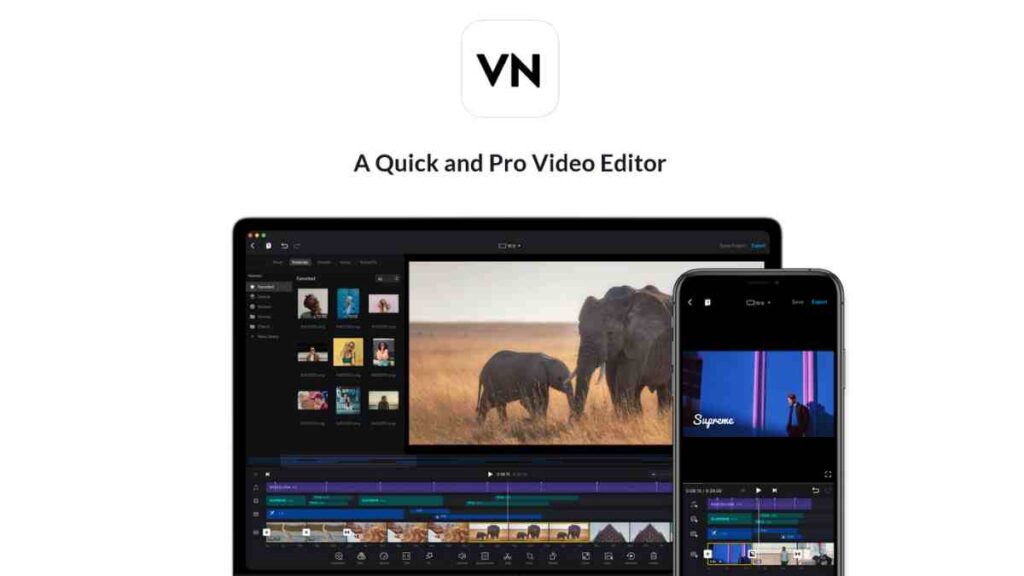
When I first downloaded VN Video Editor, I was not sure what to expect. It’s often described as a free editing app for beginners, but after testing it for a few days, I quickly realised it is far more capable than many give it credit for. As a CapCut alternative, VN turned out to be one of the most impressive surprises in my review.
I used it to edit a social media series and a short promotional clip, and the results were clean, professional, and visually striking.VN’s interface is one of the cleanest I have used. It has a minimal learning curve, and yet the editing tools are detailed enough to handle complex projects.
What I liked most was how it allowed for frame-by-frame control without lagging, something even CapCut sometimes struggles with on longer timelines. The speed of export and the reliability of its auto-save system gave me confidence during high-pressure editing sessions. VN feels like it was designed for creators who want professional output without the clutter or cost of subscription-heavy apps.
Features I Discovered
- 4K export support without any watermark, even in the free version.
- Advanced keyframe animation and speed curve controls.
- Built-in transition effects and filters designed for cinematic looks.
- Precise text tools with animation presets and font customisation.
- Background music and sound effect integration with beat sync.
Improvements Compared to CapCut
In my tests, VN Video Editor performed more efficiently than CapCut when handling longer and higher-resolution clips. While CapCut focuses on trends and social templates, VN feels like a more serious editing tool for storytellers and filmmakers.
Its offline editing mode, unlimited layers, and superior export flexibility make it one of the best CapCut alternatives available today.
VN Pricing
| Plan | Cost |
| Free Version | $0 |
| Premium | Currently free |
Pros
- 100% free to use with no watermark.
- Smooth timeline performance even with multiple layers.
- Offline editing capability ideal for creators without constant internet access.
- Fast 4K rendering and reliable auto-save.
- Simple and intuitive interface for all experience levels.
Cons
- No built-in cloud storage or cross-device syncing.
- Limited stock footage and templates compared to paid competitors.
- Fewer AI-powered tools than CapCut or Filmora.
- Text animations could use more variety.
- Occasional frame drops on older mobile devices.
Supported Platforms
VN Video Editor is available on Android, iOS, Windows, and macOS, making it one of the most versatile mobile and desktop video editing apps in its category.
The ability to edit offline, export in 4K, and maintain professional control without paying a subscription makes it one of the top CapCut alternatives for both beginners and professionals.
For anyone seeking a free yet powerful CapCut alternative, VN easily earns its place on the list.
See Also: 15 Best Docker Alternatives for Containers, Virtual Machines, and Dev Workflows
6. Adobe Premiere Rush
When I first tried Adobe Premiere Rush, I wondered if Adobe could capture the power of Premiere Pro in a lighter, mobile-friendly format and it did, impressively so.
As a CapCut alternative, Premiere Rush offers a more polished editing experience that strikes a balance between simplicity and creative depth. I used it for a YouTube trailer and an Instagram campaign, and it handled transitions, colour correction, and audio with professional precision.
What I loved most was its clean interface and seamless sync between mobile and desktop. I could start on my phone and finish on my laptop effortlessly. With Adobe Creative Cloud integration, it is perfect for creators who want cinematic-quality edits without the complexity of full Premiere Pro.
Features I Discovered
- Seamless cross-editing with Adobe Premiere Pro for advanced users.
- Multi-device synchronisation via Adobe Creative Cloud.
- Built-in professional-grade colour presets and filters.
- Advanced audio tools with automatic ducking for voice and music balancing.
- Drag-and-drop transitions and motion graphics templates from Adobe Stock.
- Direct export to YouTube, TikTok, and Instagram with platform-specific aspect ratios.
Improvements Compared to CapCut
While CapCut shines in short-form content and trendy visual effects, Adobe Premiere Rush offers a more stable and professional-grade experience. It is not just about filters and templates; it is about true creative control.
The app enables more advanced audio editing, improved colour correction, and higher-quality exports. For creators who want something beyond social-style edits, Premiere Rush is one of the better alternatives to CapCut that feels both premium and efficient.
Adobe Premiere Rush Pricing
| Plan | Cost |
| Free Version | $0 |
| Premium Plan | $4.99 |
Pros
- Professional-level results with minimal learning curve.
- Reliable multi-device syncing through Creative Cloud.
- Excellent audio and colour tools compared to CapCut.
- Integrates with other Adobe products for enhanced workflow.
- Great export options for different social platforms.
Cons
- Limited free plan with restricted export counts.
- Requires strong internet connection for syncing.
- Heavier app size compared to most mobile and desktop video editing apps.
- Can feel slightly slower on older smartphones.
- Premium subscription can be expensive for casual users.
Supported Platforms
Adobe Premiere Rush is available on iOS, Android, Windows, and macOS, offering complete flexibility for creators who edit across devices.
It is one of the top CapCut alternatives for professionals seeking reliability and creative depth in their workflow. Whether you are editing vlogs, product demos, or brand videos, Premiere Rush provides a polished, studio-quality output.
7. VivaVideo
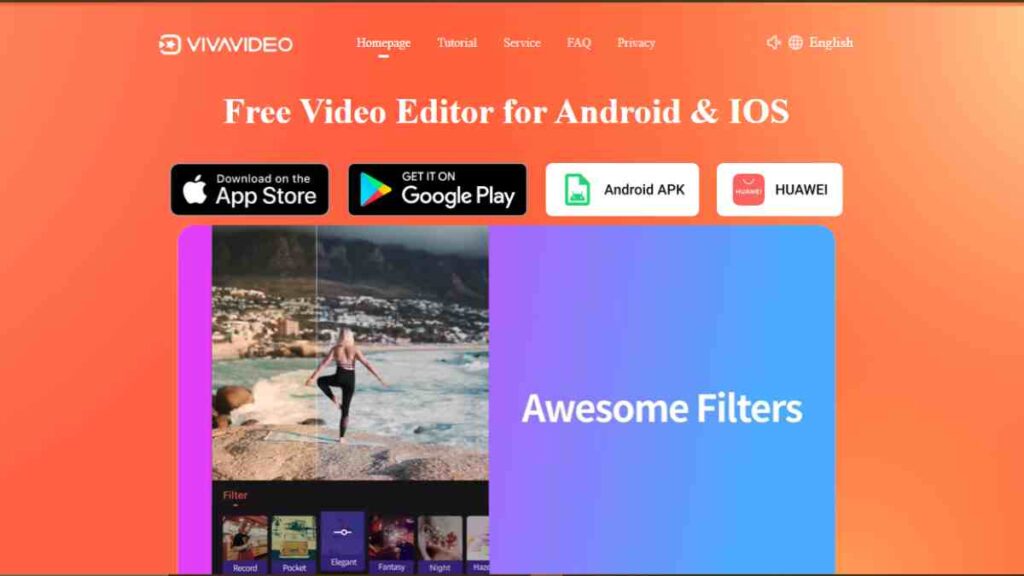
When I first used VivaVideo, it felt like returning to an old classic, but with a modern twist. Once known mainly for casual mobile edits, the app has evolved significantly, now standing tall as one of the best CapCut alternatives for creators who want quick yet high-quality edits on the go.
I used it to edit a mini social media documentary and a travel vlog, and I was genuinely impressed by how polished the results turned out. What makes VivaVideo stand out is how it merges accessibility with creativity.
It is simple enough for beginners but comes packed with advanced tools like multi-track editing, video speed control, and professional filters. For mobile creators who want a reliable CapCut alternative that balances fun and function, VivaVideo ticks a lot of boxes.
Features I Discovered
- Multi-track editing for complex video layering.
- Smart AI beautify tools for facial enhancement and scene correction.
- Built-in templates and effects designed for social media trends.
- Speed adjustment and reverse playback options.
- A large royalty-free music library for background audio.
Improvements Compared to CapCut
In my testing, VivaVideo proved to be one of the better alternatives to CapCut in terms of stability and export quality. Unlike CapCut, which occasionally lags when layering multiple clips, VivaVideo maintained smooth playback even during heavy edits.
I also appreciated how its transitions felt less gimmicky and more professional. The app’s premium filters and intuitive interface gave me a consistent editing flow, and the export process was quick and reliable.
VivaVideo Pricing
| Plan | Cost |
| Free Version | $0 |
| VIP Plan | $6.99 |
Pros
- Highly intuitive for beginners and casual creators.
- Excellent range of filters and transitions for professional-quality output.
- Fast export speed and stable performance.
- Includes AI-enhanced beautification and lighting tools.
- Great for quick social edits and storytelling.
Cons
- Free version adds watermarks to exported videos.
- Limited advanced colour grading tools.
- Occasional ads in the free version.
- Cloud storage and cross-device sync unavailable.
- Audio editing tools are quite basic.
Supported Platforms
VivaVideo is available on Android, iOS, Windows, and macOS, making it one of the most flexible mobile and desktop video editing apps in its category.
Its lightweight design and broad accessibility make it one of the top CapCut alternatives for users seeking a blend of simplicity and creative power.
8. Canva Video Editor
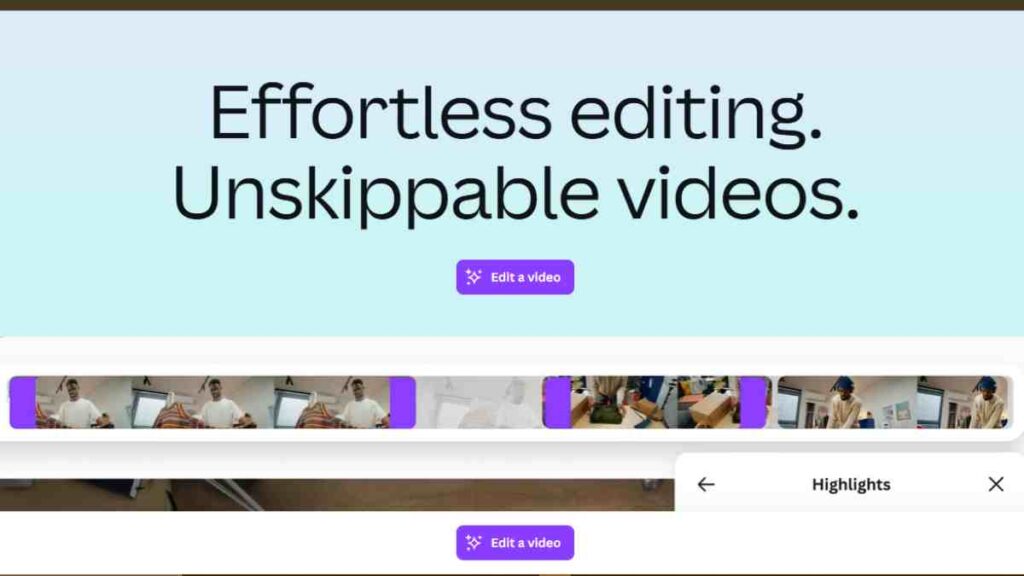
When I first checked out Canva Video Editor, I was not expecting much beyond simple drag-and-drop templates. After all, Canva had built its reputation primarily on graphic design. But after spending a week editing multiple brand videos, short reels, and an explainer clip, I quickly realised it is one of the most underrated CapCut alternatives in the market.
What struck me most was how seamlessly it integrated video creation with design, something CapCut, despite its strength in effects, has not fully achieved. Editing with Canva Video Editor felt refreshingly intuitive. I could import my clips, overlay custom graphics, and synchronise transitions with music effortlessly.
The interface is beautifully clean, with smart suggestions for layouts, transitions, and text placement. For marketers, content creators, or small business owners who want to create brand-consistent videos without hiring a professional editor, this tool is a real game-changer.
Features I Discovered
- Drag-and-drop timeline editor with AI-assisted templates.
- Vast stock video and audio library integrated into the platform.
- Brand Kit integration for logos, colours, and fonts.
- Real-time collaboration for teams and remote editing.
- Built-in AI script generator and caption tool.
- Cloud-based editing with autosave and multi-device access.
Improvements Compared to CapCut
While CapCut excels in short-form video editing, Canva Video Editor outperformed it in branding and collaboration. I could easily maintain a consistent design language across all my projects, something CapCut does not prioritise.
In terms of workflow, its ability to sync projects between devices made it one of the better alternatives to CapCut for video editing, especially for teams working remotely or brands managing multiple campaigns.
Canva Video Editor Pricing
| Plan | Cost |
| Free Version | $0 |
| Pro Plan | $14.99 |
| Teams | Custom |
Pros
- Easy for beginners but powerful enough for professionals.
- Huge library of stock videos, music, and templates.
- Perfect for brand consistency and marketing campaigns.
- Real-time collaboration ideal for teams.
- Works directly in browsers without heavy installation.
Cons
- Requires internet access; no offline editing.
- Limited timeline precision compared to CapCut or Filmora.
- Slower rendering speed for long videos.
- Lacks advanced audio controls.
- Fewer visual effects than trend-focused apps.
Supported Platforms
Canva Video Editor runs on web browsers, Windows, macOS, Android, and iOS, offering broad accessibility for creators. Its cross-platform functionality, combined with its rich creative toolkit, makes it one of the top CapCut alternatives for individuals and teams seeking a visually driven editing experience.

9. LightCut
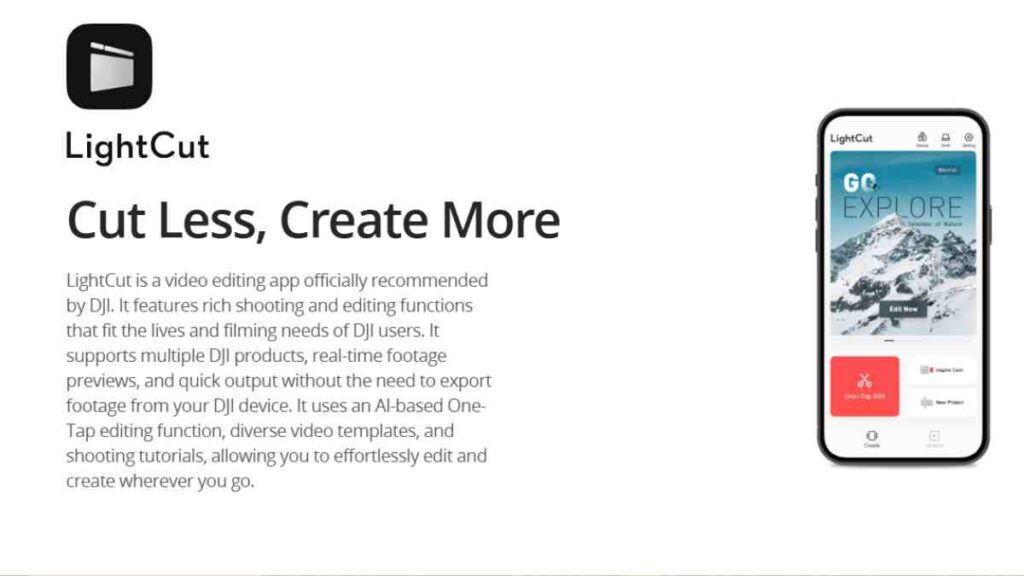
When I first tested LightCut, I did not expect much. It looked like another lightweight mobile editor. But after spending a few days using it to edit both personal vlogs and short branded clips, I realised it is one of the smartest CapCut alternatives I have come across.
Developed by DJI, the makers of some of the world’s best drones, LightCut is clearly built for creators who value speed, automation, and professional aesthetics. The app instantly analysed my clips, identified the highlights, and generated a clean, engaging video draft within seconds.
That level of automation is rare, even among mobile and desktop video editing apps. Its integration with DJI drones and cameras makes it even more appealing to vloggers and filmmakers.
Features I Discovered
- AI-powered one-tap video editing with automatic highlight detection.
- Custom templates and filters optimised for travel, product, and lifestyle content.
- Seamless DJI device integration for drone and camera footage.
- Advanced trimming and multi-clip timeline support.
- Built-in royalty-free music matched to video rhythm.
Improvements Compared to CapCut
In my tests, LightCut stood out for its automation and precision. While CapCut requires a fair bit of manual effort to produce polished edits, LightCut handled transitions, effects, and timing almost perfectly on its own.
For creators who want efficiency without sacrificing quality, LightCut is one of the better alternatives to CapCut for video editing, particularly for drone footage and cinematic storytelling.
LightCut Pricing
| Plan | Cost |
| Free Version | $0 |
| Premium Plan | $7.99 |
Pros
- Extremely fast and intuitive AI-assisted editing.
- Works seamlessly with DJI cameras and drones.
- Great for travel and cinematic content creation.
- 4K export quality even in the free plan.
- Lightweight and stable performance on mobile.
Cons
- Limited manual editing flexibility.
- Fewer advanced audio tools compared to CapCut or Filmora.
- No multi-device project syncing.
- Cloud storage limited on free plan.
- Some premium templates locked behind paywall.
Supported Platforms
LightCut is available on Android, iOS, and Windows, offering lightweight yet powerful functionality for creators who value speed and automation.
Its smart AI-assisted workflow, smooth integration with DJI devices, and elegant export quality make it one of the top CapCut alternatives available today.
10. DaVinci Resolve
When I first opened DaVinci Resolve, I instantly knew I was dealing with a different kind of video editor, one built for precision, control, and cinematic storytelling. It is not just another CapCut alternative; it is a professional-grade editing suite that powers Hollywood films, documentaries, and high-end productions.
But what truly surprised me was how accessible it has become, even for creators like me who usually work on mobile-first platforms.I spent several days testing DaVinci Resolve on both desktop and tablet setups, editing a short documentary and a corporate campaign video.
The experience was seamless, rich, and deeply satisfying. Compared to CapCut’s template-driven simplicity, Resolve’s depth and performance make it a clear standout among mobile and desktop video editing apps for professionals and enthusiasts alike.
Features I Discovered
- Advanced multi-track timeline with industry-standard editing controls.
- Fusion visual effects (VFX) and motion graphics workspace.
- Fairlight audio post-production tools for precise sound design.
- Collaboration features for multi-user editing workflows.
- High-quality 4K and even 8K rendering options.
Improvements Compared to CapCut
In every sense, DaVinci Resolve is far more advanced than CapCut. While CapCut is designed for social media and speed, Resolve focuses on cinematic storytelling and post-production excellence.
From perfecting skin tones to designing motion titles, Resolve transformed how I approached professional editing. For creators, editors, and filmmakers who want to elevate their craft, it is one of the better alternatives to CapCut for video editing.
DaVinci Resolve Pricing
| Plan | Cost |
| Free Version | $0 |
| Pro Plan | $295 |
Pros
- Industry-standard editing and colour grading tools.
- Free version includes most professional features.
- Stable, fast performance even with heavy files.
- Supports multi-user collaboration.
- Seamless workflow integration with external tools and hardware.
Cons
- Steeper learning curve for beginners.
- Not ideal for quick, social-style edits.
- Requires a powerful system for 4K or 8K editing.
- Lacks mobile-friendly interface for on-the-go use.
- Limited built-in templates compared to CapCut.
Supported Platforms
DaVinci Resolve runs on Windows, macOS, and Linux, with a companion app for iPadOS that brings much of its desktop power to mobile creators. Its versatility, and professional-grade capabilities make it one of the top CapCut alternatives for anyone serious about mastering post-production.
For filmmakers, content creators, and visual storytellers looking beyond templates and trends, DaVinci Resolve is the ultimate CapCut alternative; one that delivers cinematic precision, unmatched creative freedom, and results worthy of the big screen.
See also: I Tested Autodraft AI for Animated Video Ads Creation- A Hands-On Autodraft AI Review
My Final Verdict
After testing all these CapCut alternatives, I realised there is no one-size-fits-all tool, it depends on your goals and workflow.
InShot is perfect for quick, high-quality mobile edits. Premiere Rush offers professional polish with cross-device freedom. And if you want total creative control, tools like DaVinci Resolve or Filmora take things up a notch.
For me, switching from CapCut was not about abandoning simplicity but about unlocking more creative freedom. And that is what the right editor should always do.
Conclusion
While CapCut remains one of the most popular mobile and desktop video editing apps, exploring a reliable CapCut alternative gives you the freedom to go further, offering better tools, more flexibility, and a smoother creative process.
Whether you are editing for fun, growing your brand, or creating professional content, taking the time to discover the best CapCut alternatives ensures your videos look polished and distinctive. By understanding the features, you’ll find a platform that truly fits your editing style.
We want to see you succeed, and that’s why we provide valuable business resources to help you every step of the way.
- Join over 23,000 entrepreneurs by signing up for our newsletter and receiving valuable business insights.
- Register your business today with Entrepreneurs.ng’s Business Registration Services.
- Tell Your Brand Story on Entrepreneurs.ng, let’s showcase your brand to our global audience.
- Need help with your marketing strategy? Get a Comprehensive Marketing and Sales Plan here.
- Sign up for our Entrepreneurs Success Blueprint Programme to learn how to start and scale your business in just 30 days.
- Book our one-on-one consulting and speak to an expert about structuring and growing your business.
- Visit our shop for business plan templates and other valuable resources to guide you.
- Get our Employee-Employer Super Bundle NDA templates to legally protect your business and workforce.
- Advertise your business to over a million entrepreneurs through our different advertising packages.

Frequently Asked Questions (FAQs)
Why should I consider using a CapCut alternative?
You may want to use a CapCut alternative if you need professional-level tools, watermark-free exports, or better performance on your device. Many better alternatives to CapCut for video editing also support 4K rendering and offline editing.
Are there free CapCut alternatives available?
Yes, there are several free CapCut alternatives such as InShot, VN Video Editor, and LightCut. These offer great editing tools without requiring a paid subscription.
Which are the best CapCut alternatives for beginners?
For beginners, the best CapCut alternatives include VN, InShot, and Canva Video Editor. They are simple to use, have ready-made templates, and work well on both mobile and desktop.
Do CapCut alternatives for video editing work offline?
Some CapCut alternatives for video editing, like PowerDirector and KineMaster, support offline editing, so you can work on projects without an internet connection.
What features should I look for in a CapCut alternative?
A strong CapCut alternative should include features like advanced filters, sound editing, transitions, templates, and 4K export options. You should also consider device compatibility and ease of use.
Are paid CapCut alternatives worth it?
Yes, paid versions of video editing apps such as Filmora or PowerDirector offer professional-grade features, no ads, and watermark-free exports, making them great long-term investments for serious creators.
Can free CapCut alternatives export videos without watermarks?
Some free CapCut alternatives allow watermark-free exports, though many reserve this feature for premium plans. Always check the app’s policy before exporting your work.
Are CapCut alternatives easy to learn?
Yes, most great CapCut alternatives are user-friendly and come with tutorials or in-app guides, making them accessible even to complete beginners.
What devices can I use for video editing apps?
You can use video editing apps on smartphones, tablets, or computers. Most mobile and desktop video editing apps are available for Android, iOS, Windows, and macOS.