I wrote this Gamma AI Review after spending weeks testing the Gamma app, an innovative AI presentation tool that is quickly gaining attention among entrepreneurs and creators. If you have ever wished you could design stunning slides, documents, or web pages in minutes without wrestling with PowerPoint, you will want to read this.
As someone who loves to try out every new AI productivity tool, I was curious to see if Gamma could truly simplify my workflow and justify its pricing. And honestly, it is one of the best AI tools I have used this year.
In this Gamma AI PPT maker review, I will share my real experience, what works, what does not, and whether this platform lives up to the hype. According to McKinsey & Company, AI could add up to $4.4 trillion in annual global productivity, and tools like Gamma are making that future happen faster than we think.
Key Takeaways
- Gamma AI helps me create stunning presentations and documents in minutes with zero design skills.
- It is a powerful time-saver for entrepreneurs who want to focus on ideas, not formatting.
- While the free version is useful, the paid plan unlocks its true creative potential.
- Overall, it is an intuitive, reliable tool that has transformed how I communicate and pitch my ideas.

What Is Gamma AI?
Gamma AI is an intelligent presentation and document creation tool that feels like having a designer and writer working beside you. When I first tried it, I was amazed by how easy it was to bring my ideas to life. I simply typed what I wanted to talk about, and Gamma instantly turned it into a clean, professional-looking presentation.
Think of it as a mix between PowerPoint, Canva, and ChatGPT, but smarter. Instead of spending hours choosing templates and arranging slides, Gamma does the heavy lifting for you. It understands context, creates well-structured content, and designs visuals that actually make sense for your message.
What I love most is how natural it feels to use. You do not need to be a techie or a designer; just share your idea, and Gamma builds it out beautifully. For busy entrepreneurs like me, it is more than just an app; it is a creative assistant that helps you focus on what really matters: your story and your message.
How Does Gamma AI Work?
Using Gamma AI feels almost effortless. Once you sign up and open the workspace, you start by typing a short prompt or pasting your outline, maybe a pitch idea, a report summary, or a product concept. In seconds, Gamma uses artificial intelligence to turn those words into a complete, visually appealing presentation or document.
It automatically organises your ideas into clear sections, adds visuals and layouts that match your theme, and even suggests better phrasing where needed. You can then adjust colours, fonts, or tone to fit your brand. I usually tweak a few lines, and it already looks like something a professional designer made.
Another thing I appreciate is how easy it is to collaborate. My team can jump in, leave comments, and edit in real time, which saves us endless back-and-forth emails. Once everything looks good, I can share the link instantly without downloading or attaching bulky files.
See Also: Grok AI Review- Everything You Need to Know Before Using the Tool
How to Use Gamma AI Step-by-Step
If you are new to Gamma, here is the simple flow I follow whenever I need a polished deck fast.
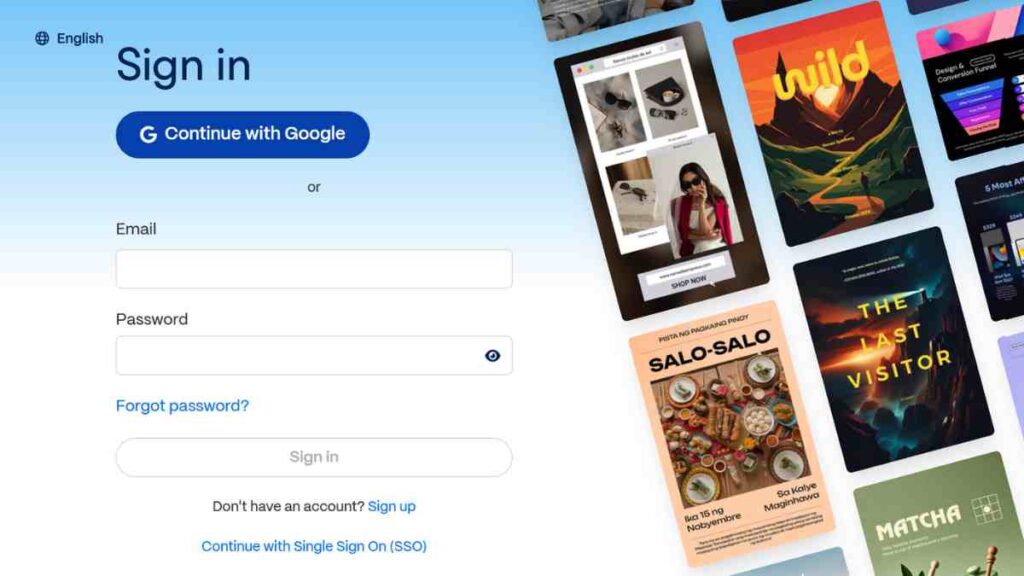
Step 1: Create Your Gamma Account
I signed up using my Google account, but you can also use your email if you prefer. It took less than a minute. I clicked on “Start for free”, verified my email, and was instantly taken to my Gamma dashboard.
The interface looked clean, minimal, and intuitive, with no clutter or confusing setup. Everything I needed to start creating was right in front of me.

Determine the Purpose of Using Gamma
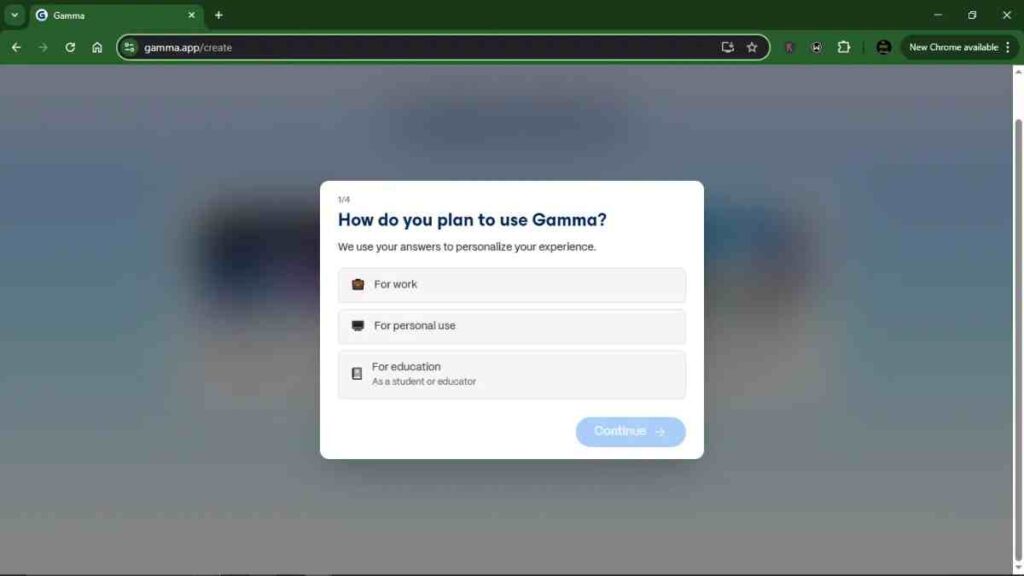
Before diving in, I took a moment to decide what I actually wanted to use Gamma for. The platform gives you options like work, personal projects, or education, so it helps to be clear from the start.
I selected work, since I mostly create business presentations and client proposals. Choosing your purpose helps Gamma tailor your experience as it suggests templates, layouts, and tools that fit your specific needs.
State the Kind of Work You Do
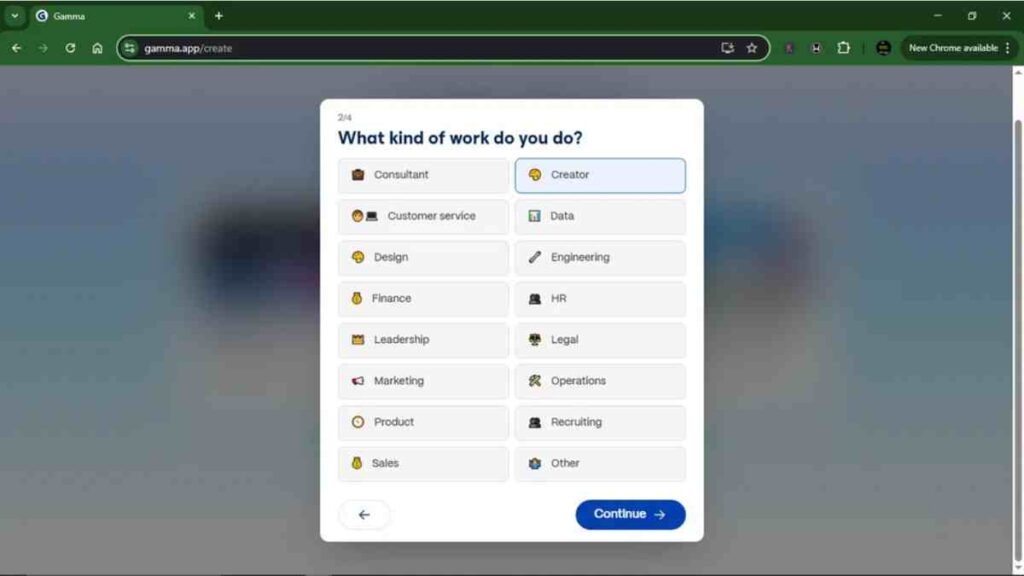
Next, Gamma asked me what kind of work I do. I liked that it felt personal, almost like the tool wanted to understand me before helping out. I selected creator, but you can choose anything that fits your field, from marketing and engineering to design or sales.
This step helps Gamma generate content and design styles that suit your profession, so the presentations it creates actually feel relevant to your work.
Select the Tasks You Want to Use Gamma For
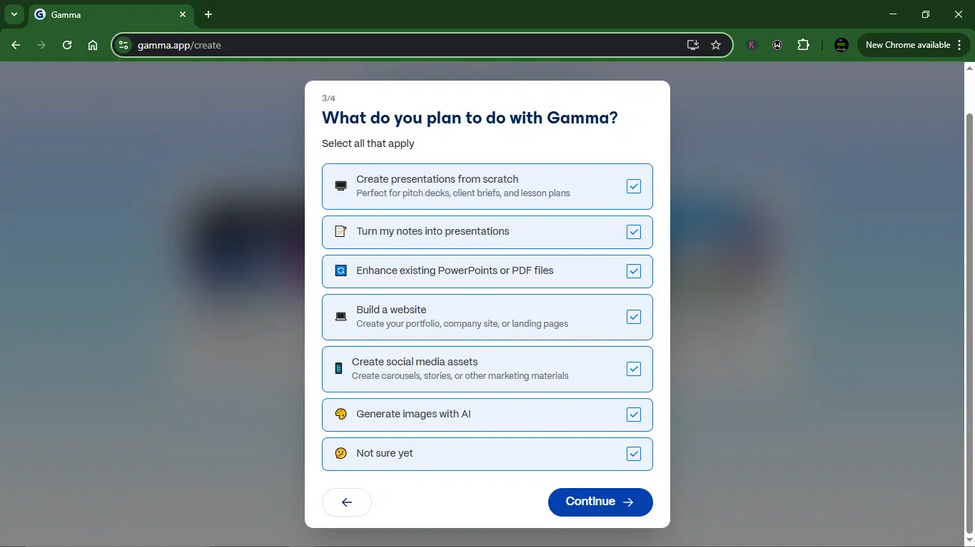
At this stage, Gamma asked what specific tasks I planned to use it for. The options included things like creating presentations, writing documents, brainstorming ideas, and building web pages.
I picked creating presentations and writing documents, since that is where I spend most of my time. Choosing the right tasks helps Gamma understand your workflow, so it can suggest the best templates, AI prompts, and features to make your projects smoother and faster.
Complete the Onboarding Process
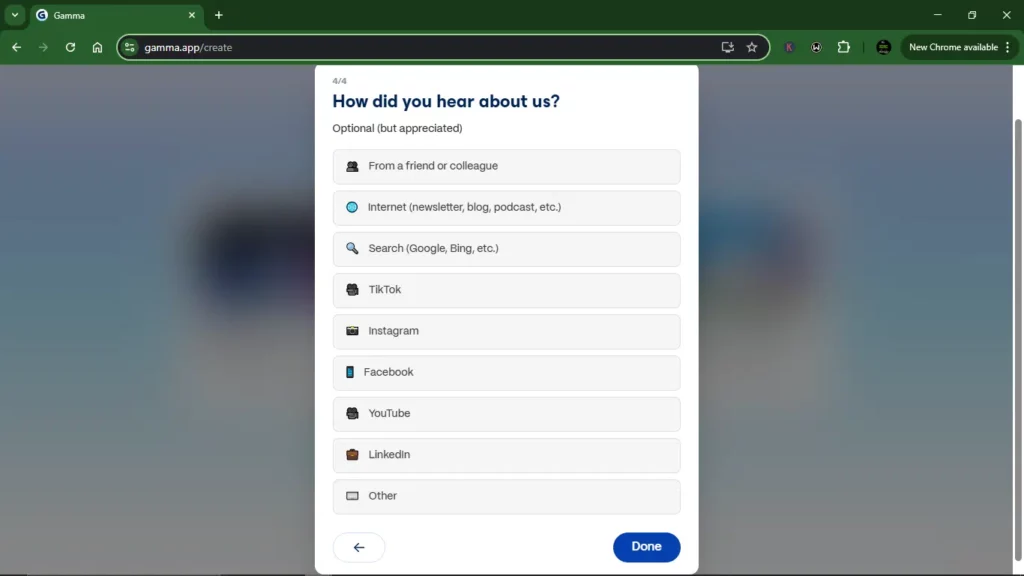
Finally, Gamma asked how I heard about them. I selected “Internet” since that is where I first discovered it. It is a small step, but it completes the onboarding process and takes you straight into your workspace.
From there, you are ready to start creating your first presentation, business proposal, or document. The whole setup took me less than five minutes, and I was impressed by how smooth and beginner-friendly it felt.

Step 2: Create a New AI Project
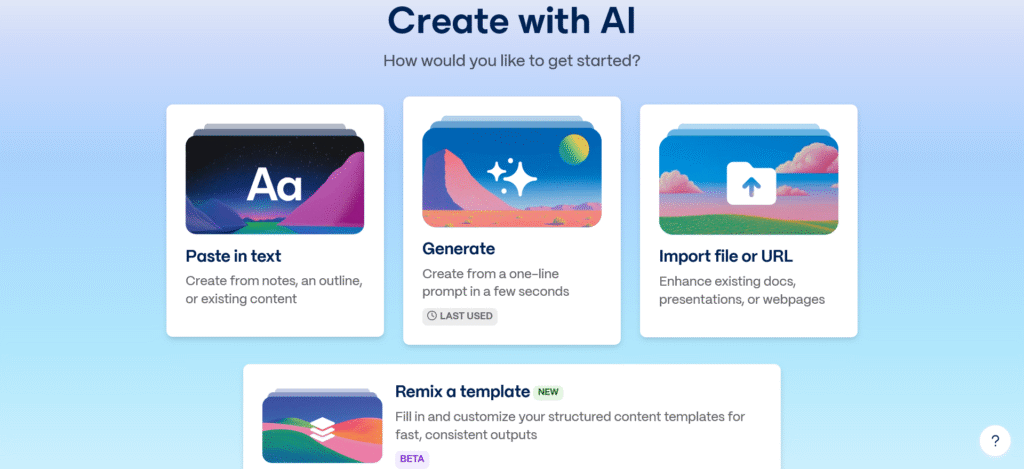
After setting up my account, I clicked on “Create New AI” and saw a few options under it. Gamma offered different ways to start:
- Paste in text: for turning existing notes or outlines into slides.
- Generate: for creating something completely new from a short prompt.
- Import file or URL: to enhance an existing document or web page.
- Remix a template: to customise ready-made layouts (still in beta).
I went with Generate, since I wanted to see how well Gamma could create a presentation from scratch.
Step 3: Describe Your Presentation
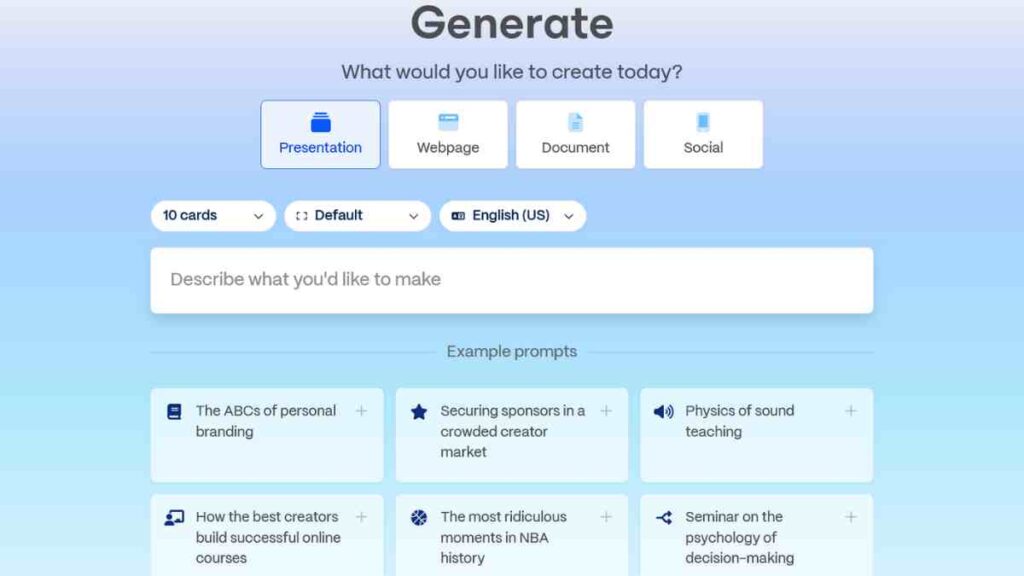
After selecting Generate, Gamma asked me what I would like to create. The interface looked straightforward, with options for Presentation, Webpage, Document, or Social content. Since I wanted a deck, I chose Presentation.
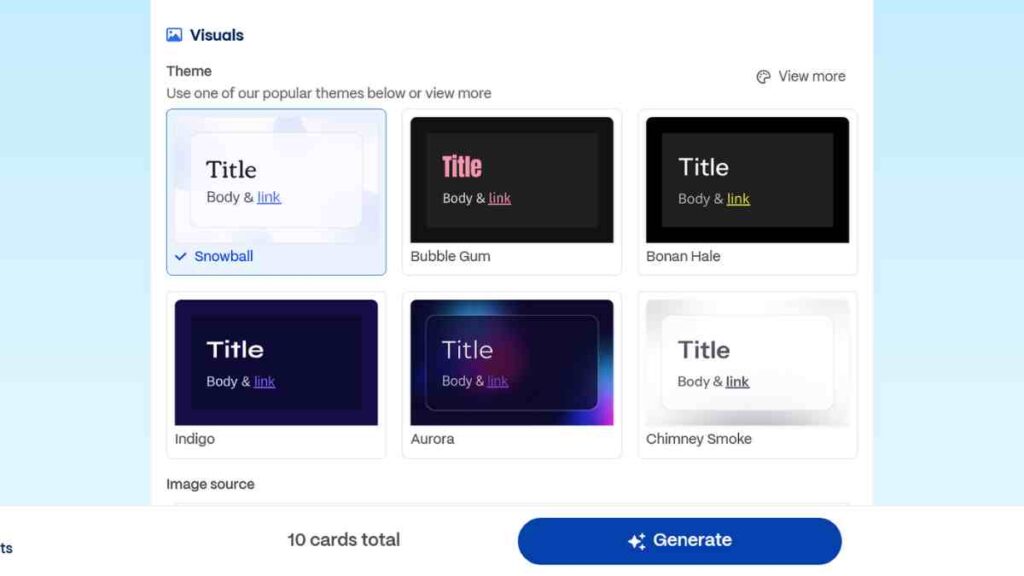
I then typed a short description in the box, something like “Creating an email list from scratch.” You can also choose how many slides (or cards) you want, the design style, and your preferred language.
If you are unsure what to write, Gamma even provides example prompts below to spark ideas.
See Also: Freed AI Review: What It Is, How It Works, and the Top Alternatives to Consider
Step 4: Fine-Tune and Refine Your Prompt
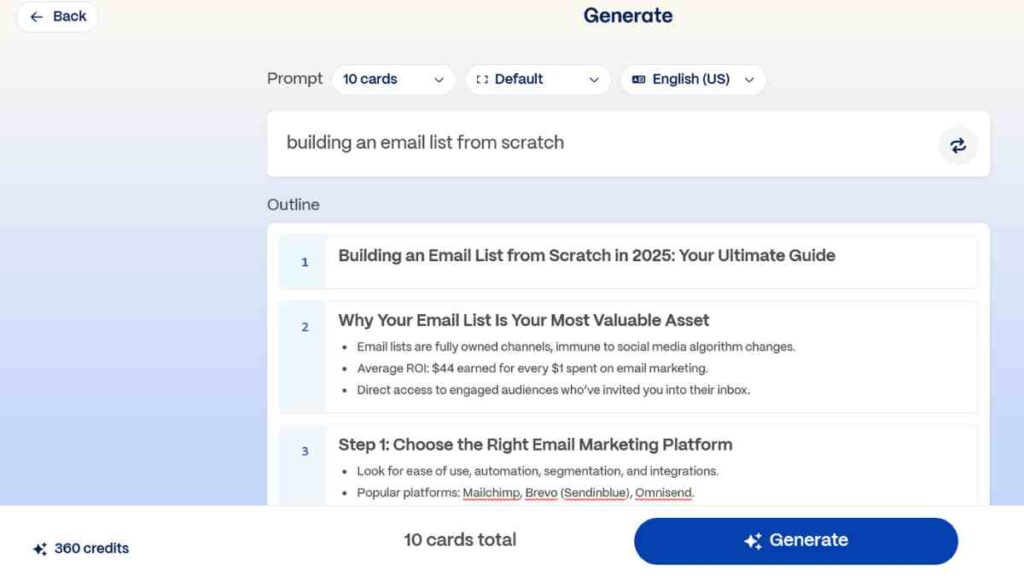
After entering my idea, Gamma displayed a structured outline based on my prompt, in this case, “Building an email list from scratch.” I could instantly see the proposed slide titles and key points for each section, such as “Why Your Email List Is Your Most Valuable Asset” and “Step 1: Choose the Right Email Marketing Platform.”
This stage is where you guide the AI to match your exact intent. I reviewed the outline, adjusted the number of slides, and rephrased my prompt slightly to make it more specific. For example, I added details like my target audience (entrepreneurs) and the desired tone (educational but conversational).
Each time I refined the text, Gamma updated the outline in real time. A small change in my prompt completely reshaped the presentation flow. Once I was satisfied with the structure and topics, I hit Generate, and within seconds, Gamma transformed my refined outline into a complete, ready-to-edit presentation. It felt like sculpting an idea into something visually real, one tweak at a time.
Step 5: Edit and Polish Your Deck
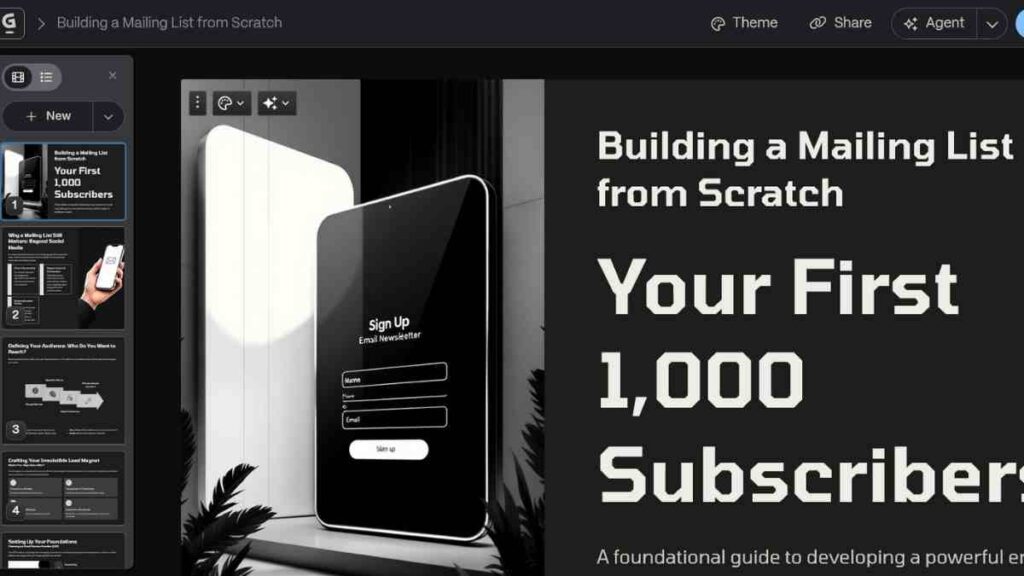
Once Gamma finished generating my presentation, I moved to the editing screen to give it a personal touch. This is where I could really make the deck my own. I reviewed each slide, adjusted the wording, and added examples or data that matched my message. If a slide did not sound right, I simply clicked “Regenerate” and Gamma rewrote it instantly with a new tone or style.
I also experimented with the design, changing layouts, colours, and images to align with my brand. Gamma made it easy to rearrange slides and refine transitions without touching complicated design tools. Within a few minutes, my presentation looked clean, cohesive, and professional.
By the time I was done, the deck felt like something I could confidently present to investors or clients. It looked polished, but what impressed me most was how little time it took to get there.
See Also: I Tested 10 Best CapCut Alternatives for Mobile and Desktop Video Editing – Here Is What I Found
Gamma AI Review: My Day-by-Day Experience Using the Tool
When I first started testing Gamma AI, I decided to use it every day for 4 days to see how it fit into my real workflow. I did not want a quick demo; I wanted to see how it performed when deadlines, meetings, and client projects piled up.
Over the next few days, I used it for everything, from creating investor decks to brainstorming blog ideas. Here is a quick look at how my experience unfolded, one day at a time.
Day 1: Creating My First Deck
On the first day, I decided to go straight in and test Gamma AI’s presentation feature. I wanted to see how well it could handle a business-related topic without much input from me. My prompt was simple: “A business pitch deck for building an email list from scratch.”
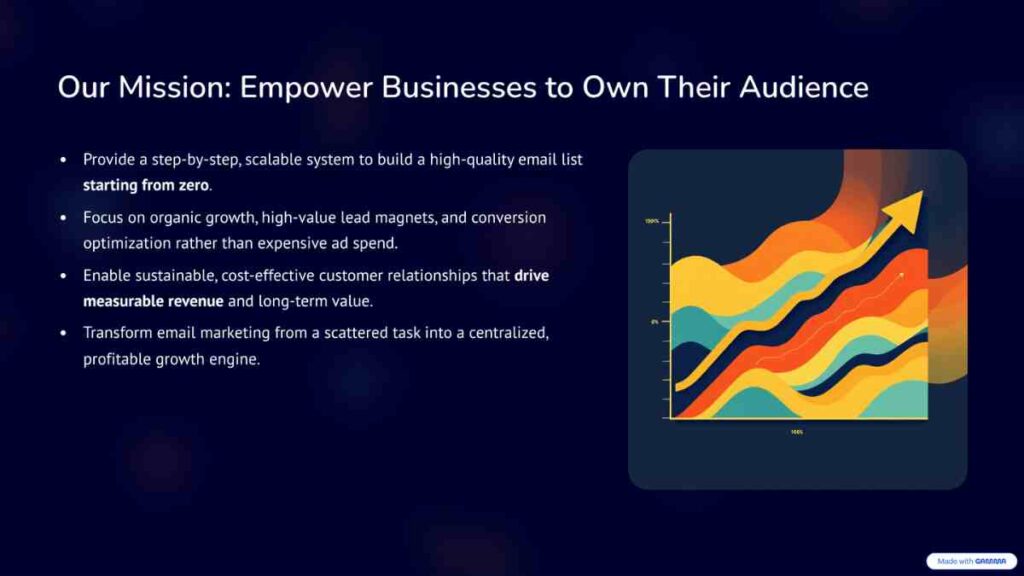
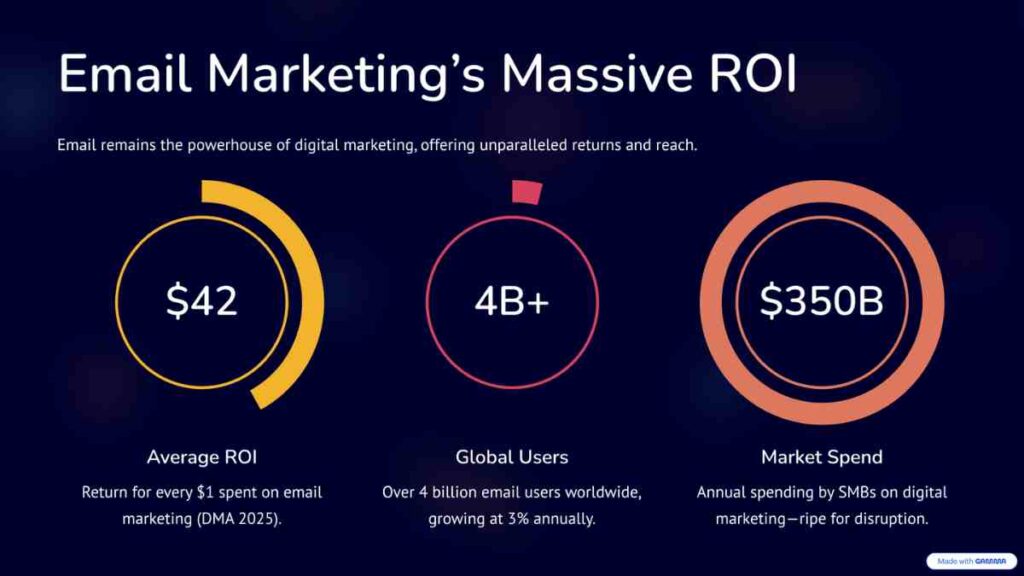
Within seconds, Gamma generated a clean, structured outline that looked like something a professional marketer would create. Each slide came with clear points, relevant statistics, and a logical flow that made sense from start to finish. I did not tweak anything, no rewriting, no formatting, nothing.
The deck looked surprisingly polished on its own, and the content was coherent enough to present immediately. For a first attempt, it felt effortless. I remember sitting back, a bit stunned, realising that Gamma had just built a presentation in less than a minute that would have taken me at least an hour to create manually. Here is the result:
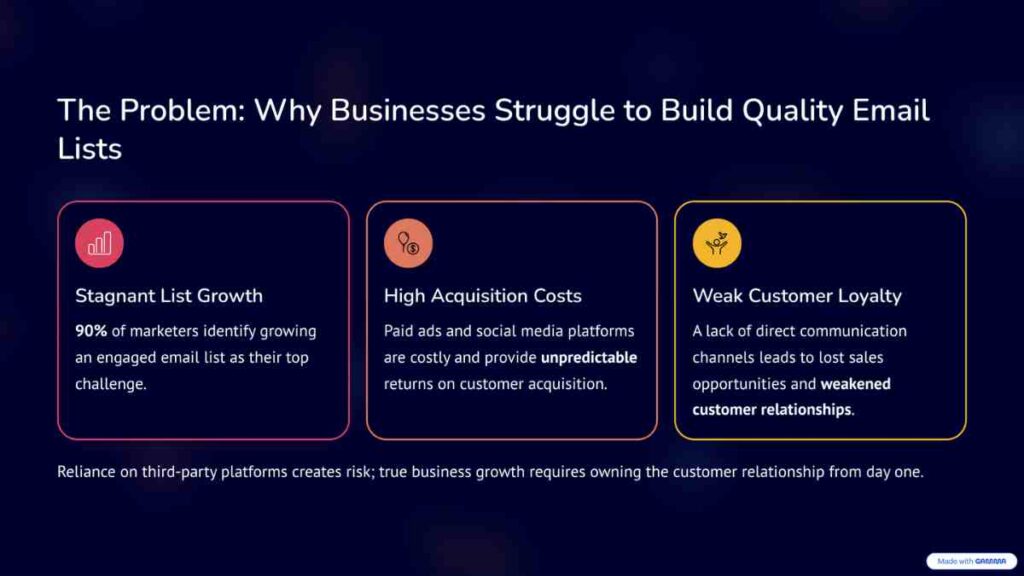
Did Gamma understand what I was going for? Absolutely. It nailed the intent and stayed focused on the topic from start to finish.
Was the structure logical? Surprisingly, yes. The slides flowed naturally, almost like someone who has built dozens of pitch decks before.
How was the editing and formatting experience? Seamless. Everything was modular and easy to adjust, with no strange formatting issues or layout glitches.
Content quality? Pretty solid overall. Some parts, like the intro and conclusion, felt a bit generic, but the foundation was strong. It gave me a clear, editable base that I could refine in minutes.
In summary, Gamma passed the first test with flying colours. It not only understood my prompt perfectly but also produced a deck that looked polished, professional, and presentation-ready, all with minimal effort on my part.
See Also: Mistral AI Reviewed: Features, Benefits, Pricing and Real-World Uses
Day 2: Creating a Social Media Post
On the second day, I wanted to test how well Gamma could handle short-form content, something quick and engaging for social media. My prompt was: “Create a social media post on how to build an email list from scratch.”
Gamma instantly produced a clean, well-structured outline. It read like a post that could work on LinkedIn or Instagram, simple, actionable, and clear.
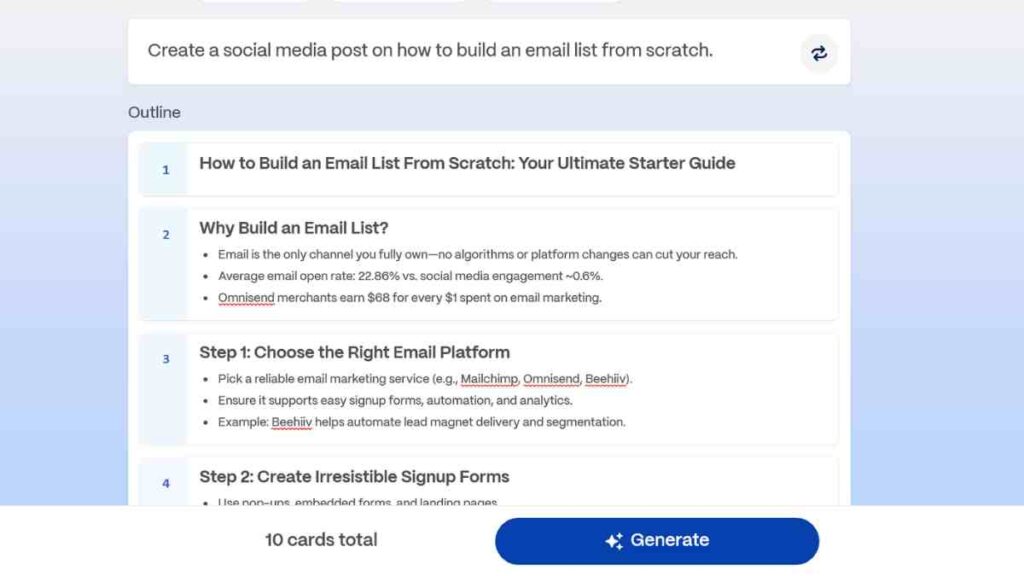
Before generating, I had the option to edit the text, adjust the tone, and choose visuals to match the message. I kept the tone professional yet conversational and selected a minimal design theme. After clicking “Generate,” Gamma pulled everything together within seconds.
Here is what I got:

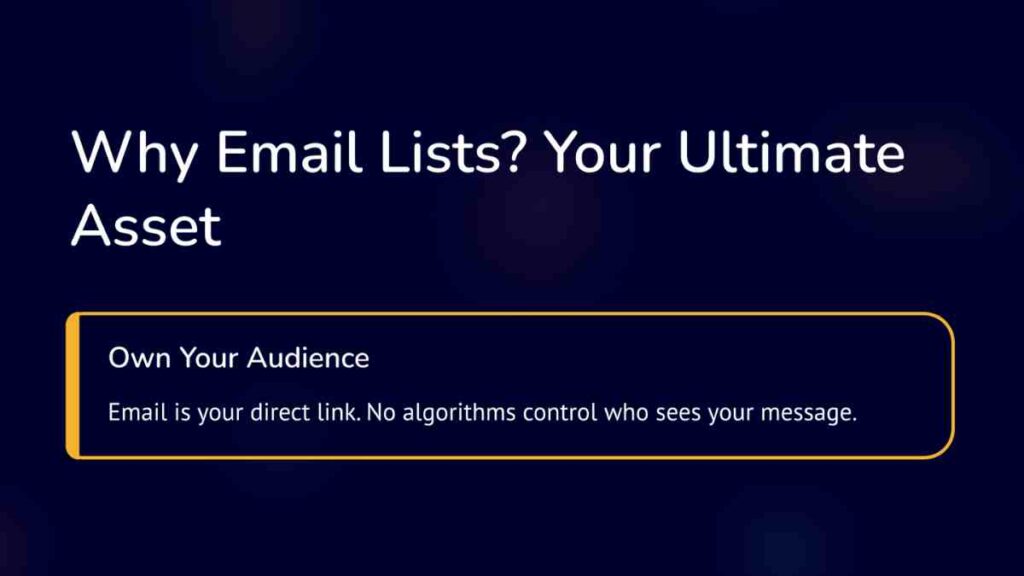

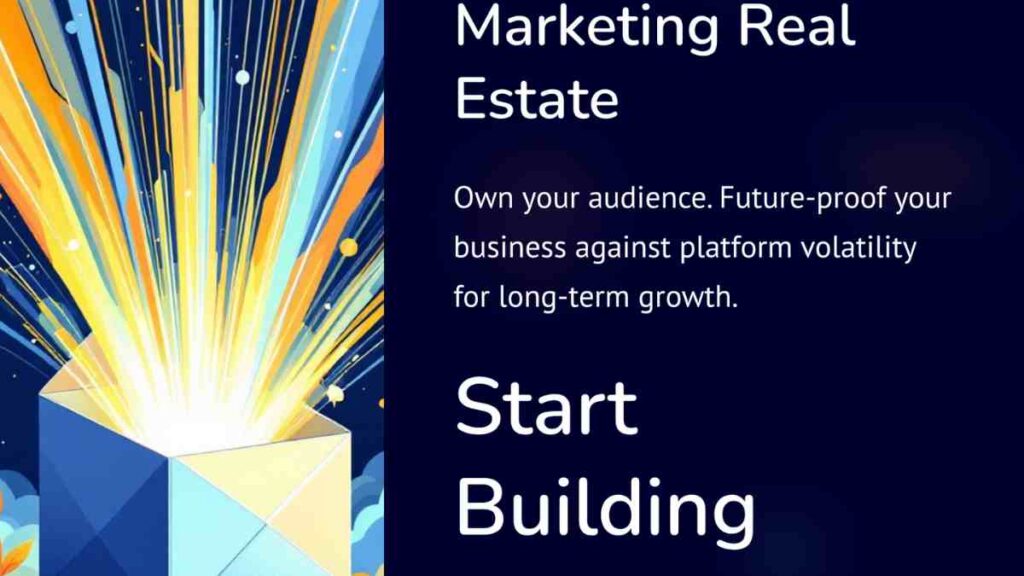
Honestly, Gamma did not quite understand the assignment this time. Instead of creating short, catchy social media carousels, it built something closer to a presentation deck, complete with slides, headings, and detailed explanations.
While the information itself was accurate and well-organised, it missed the bite-sized, scroll-stopping format that works best for social media.
That said, I could still repurpose the content it generated by trimming down the text and extracting the key points for carousel posts. It was not a total miss. Still, it made one thing clear: when it comes to quick social media content, Gamma is helpful for ideas, but not yet the perfect fit for execution.

Day 3: Testing Gamma’s AI Refinement Feature
On Day 3, I wanted to see how smart Gamma really was, not just in creating content, but in refining it. This time, I gave it one of its drafts. I gave it a brand-new prompt to test how well it could polish and improve something it wrote initially.
My prompt was:
“Turn this draft into a visually engaging pitch deck titled ‘Five Proven Strategies to Grow an Email List.’ Structure it in five clear sections, include short actionable tips under each point, and use simple icons or visuals to support the content. Keep the tone motivational but data-driven, as if presenting to small business owners at a workshop.”
Here is the draft:
“Build Your Email List from Scratch: Unlocking Direct Customer Growth. An email list is one of the most powerful tools for business growth. It allows you to connect directly with people who already trust your brand, turning engagement into lasting relationships.”
Here is what I got:

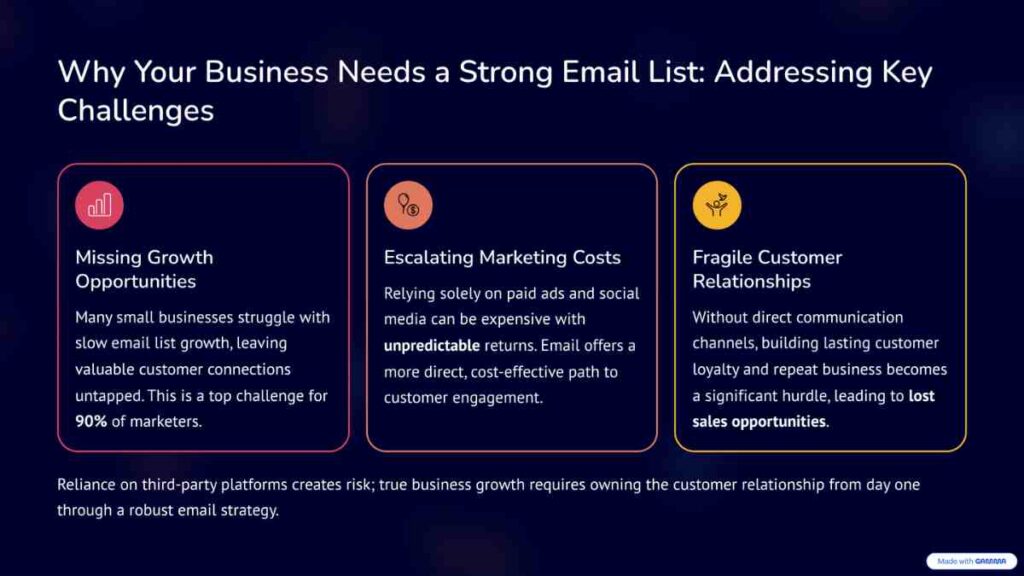
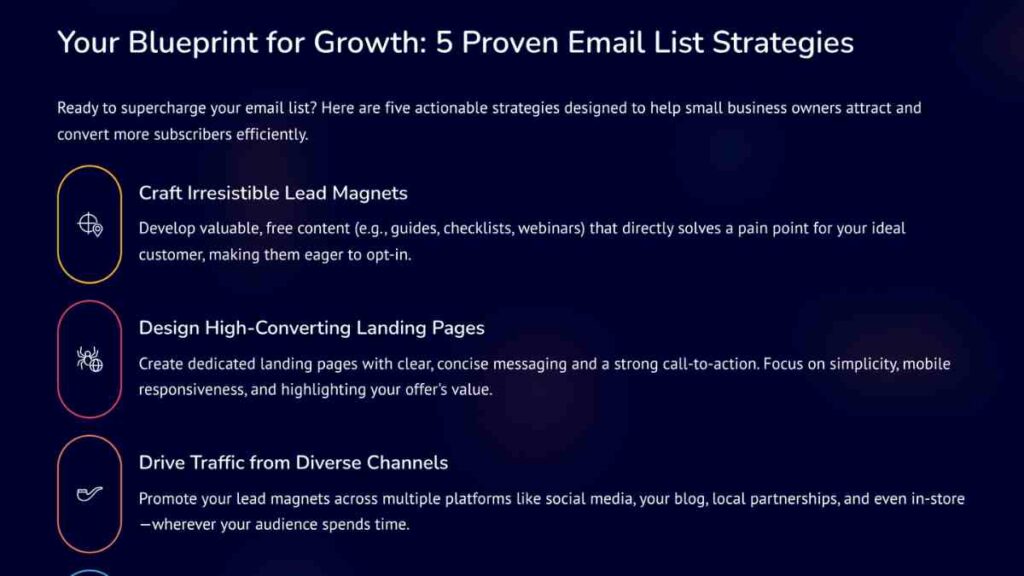
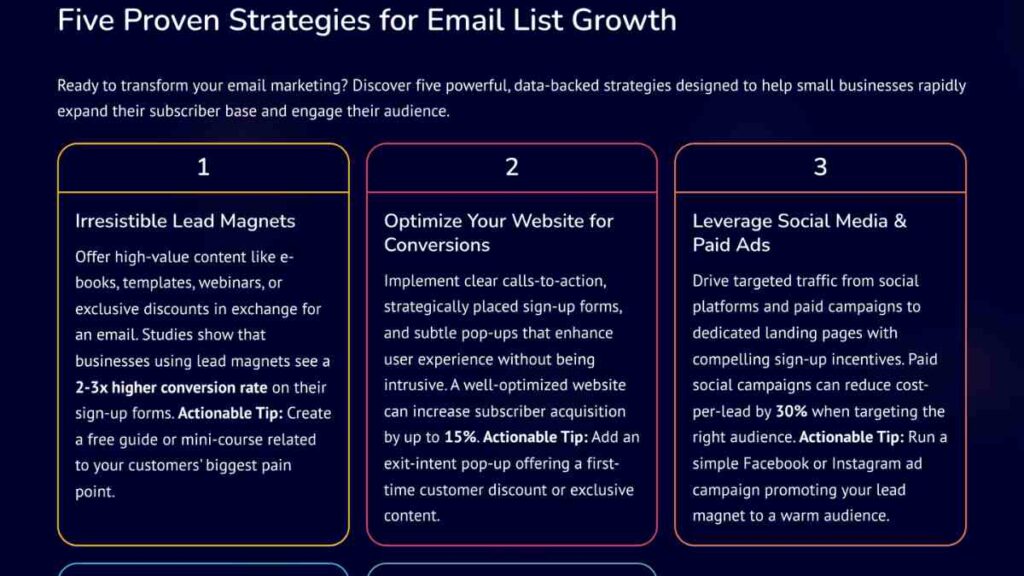

Gamma did a decent job following my new prompt. It refined the draft neatly and built a new set of slides that matched the structure I requested. The layout was clean, the tone was on point, and it even sprinkled in icons and visuals where they made sense.
However, most of the slides ended up feeling repetitive. Some ideas were restated in slightly different ways instead of introducing fresh insights for each point. It seemed like Gamma understood the overall concept but struggled a bit with variety and depth.
Still, the foundation was solid. The deck looked professional, flowed logically, and only needed a few edits to make it presentation-ready. I would say Gamma passed this round, too, though it reminded me that even with AI, the best results still come from human input and a little creative fine-tuning.
Day 4: Collaboration, Presentation, and Exporting
By the fourth day, I wanted to explore how Gamma handled teamwork and delivery, two key parts of any creative workflow. I had already seen how well it could generate and refine content, but now it was time to see how easy it was to collaborate with others and actually share the finished product.
I started by inviting a teammate to edit the deck. Gamma made this effortless. I just clicked “Share”. From there, you can:
- Export it as a PDF, PowerPoint, Google Slides, PNG, or even embed it.
- Invite collaborators via email.
- Generate shareable links
- Publish your doc as a public page or post it directly on LinkedIn.
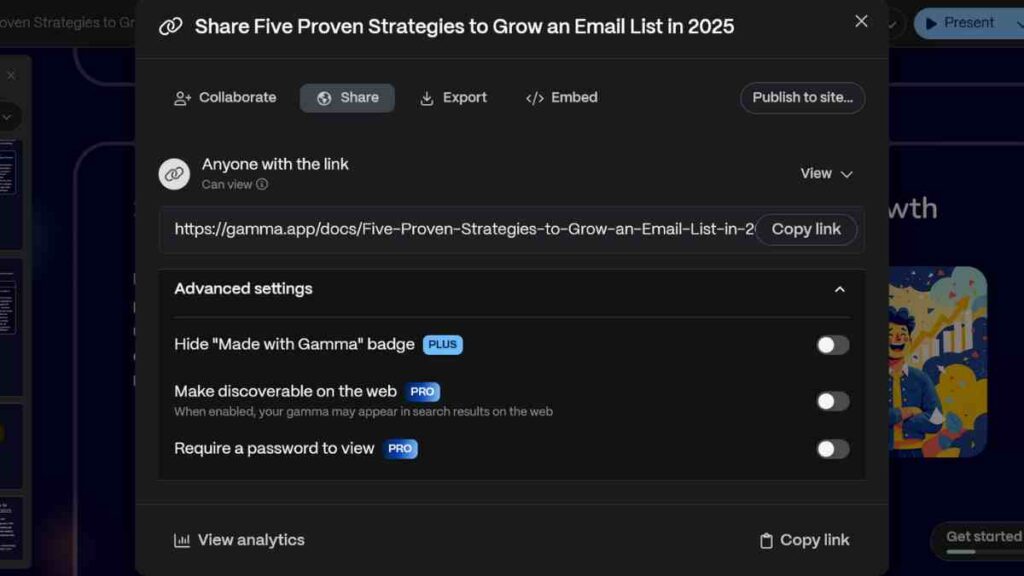
Collaborators can both type, comment, and tweak slides in real time without any lag. It felt smooth, almost like working together in Google Docs, but with better design control. The comments feature was especially handy; instead of sending long feedback messages, we could tag each other directly on specific slides.
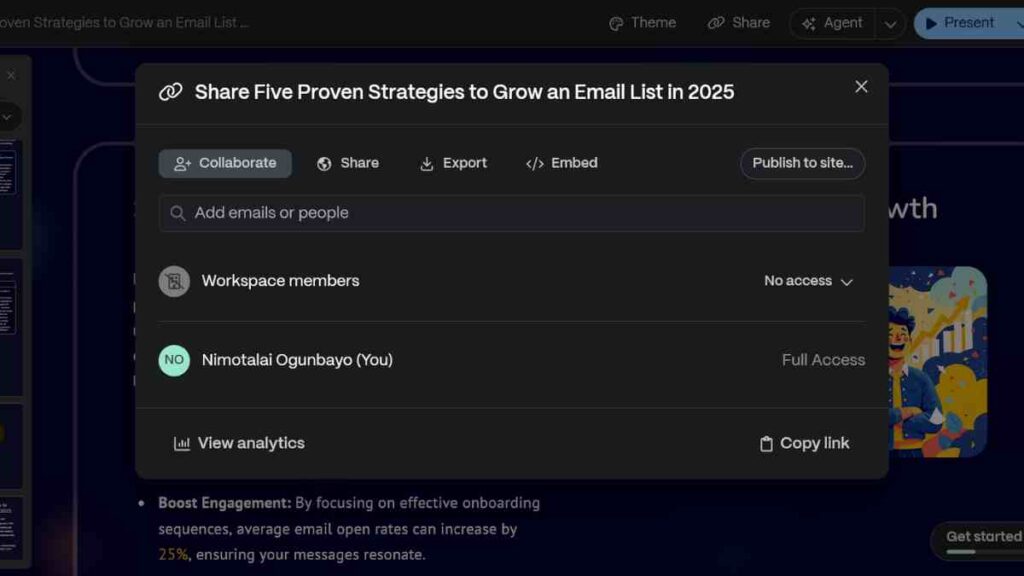
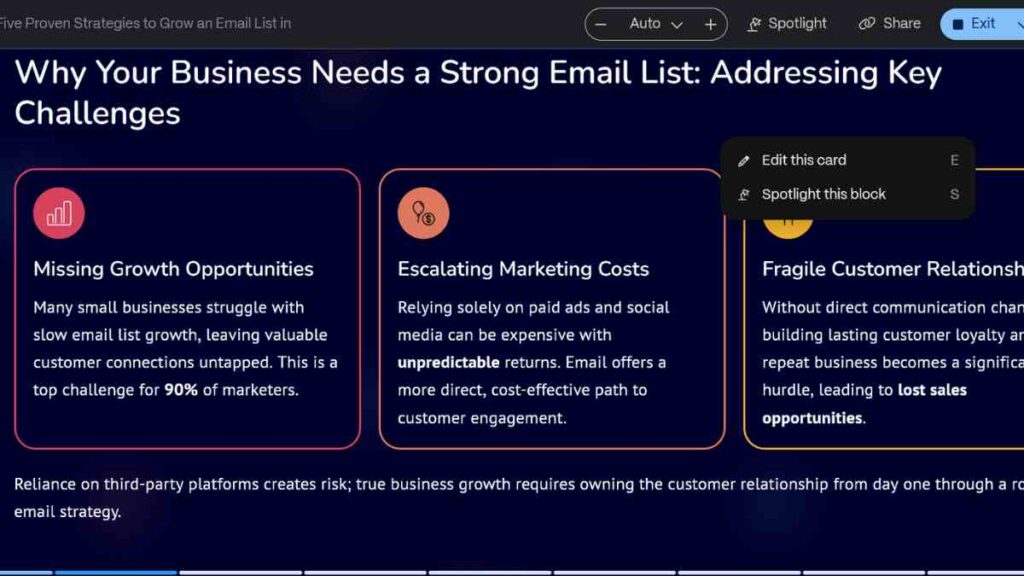
Next, I tested the presentation mode. With one click, Gamma switched to full-screen view, transitions were seamless, and the slides looked clean and professional. I appreciated that I did not need to download anything or worry about formatting issues before a presentation; everything stayed exactly as I designed it.
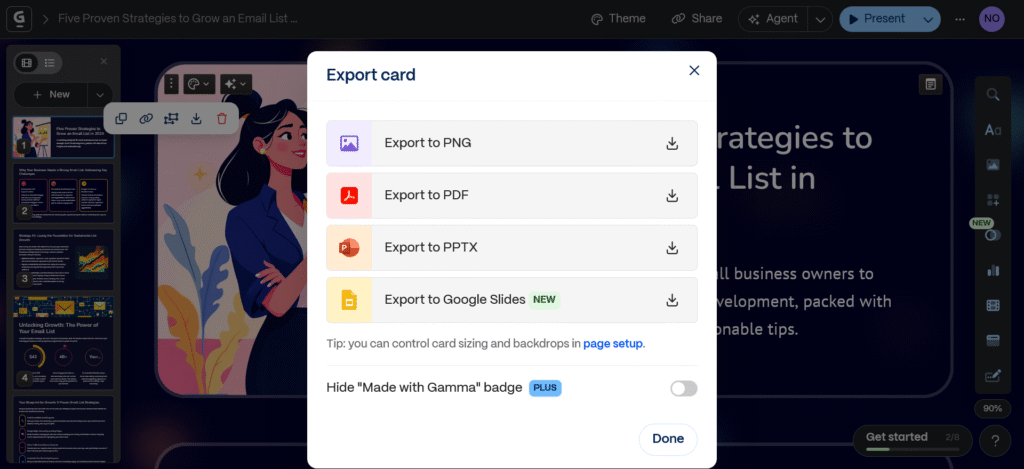
Finally, I tested exporting. The options were impressive:
- Export to PNG – perfect for sharing single slides as images on social media.
- Export to PDF – ideal for emailing decks or uploading as downloadable resources.
- Export to PPTX – for those who still prefer working in PowerPoint.
- Export to Google Slides – a new addition that worked flawlessly.
I loved that Gamma let me choose card sizing, control backgrounds, and even hide the “Made with Gamma” badge, which is a nice touch for professionals.
In short, Day 4 showed that Gamma is not just great at creating but built for collaboration and delivery too. Whether you are working with a team, pitching clients, or presenting live, the process feels fluid, efficient, and surprisingly modern.
Features I Love About Gamma AI
After using Gamma AI for a while, I can confidently say it is more than just another AI tool; it is like having a designer, writer, and strategist all rolled into one. What I love most is how intuitive it feels.
Even if you have never created a presentation before, Gamma makes the process so simple that you can go from an idea to a polished deck in minutes. Here are some of the features that truly stood out to me.
1. AI-Powered Presentation Builder
Gamma’s smart presentation builder is hands-down my favourite feature. I just describe my topic, and the AI instantly creates a structured, visually appealing deck, complete with titles, sections, and supporting text. It feels like the tool understands exactly what I want to communicate.
2. Beautiful, Auto-Designed Layouts
Unlike traditional tools, where I spend hours aligning text boxes and resizing images, Gamma automatically handles the design for me. Each slide looks sleek, consistent, and modern without any effort on my part. It saves me so much time, and honestly, it always looks presentation-ready.
3. Real-Time Collaboration
I often work with a small remote team, and this feature is a lifesaver. Gamma allows everyone to edit, comment, and review the presentation at the same time. No endless back-and-forth emails, just smooth, instant collaboration right in the workspace.
4. Custom Branding
Another thing I appreciate is how easy it is to make the presentation feel like mine. I can upload my logo, add my brand colours, and apply my fonts with just a few clicks. This way, every document I create looks professional and consistent with my brand identity.
5. Built-In Analytics
This feature surprised me the most. Gamma shows how viewers interact with my presentation, who viewed it, how long they spent on each slide, and where they dropped off.
For someone pitching ideas or proposals, that kind of insight is gold. It helps me understand what works and what needs tweaking.
6. AI Content Assistance
Gamma does not just design, it helps me write better, too. If I am stuck, I can highlight a sentence and ask the AI to improve, expand, or summarise it. It is like having an editor by my side, helping me sound clear, confident, and concise every single time.

Where Gamma AI Fell Short for Me
As much as I enjoyed using Gamma, it is not without its flaws. Like most AI tools, it delivers impressive results but still leaves room for improvement. Here is where I think Gamma could do better and how I worked around those limitations.
1. No Offline Mode
One of the first things I noticed is that Gamma needs a stable internet connection to work. There is no offline mode, which can be frustrating if you are travelling or working somewhere with poor connectivity.
To get around this, I started exporting my presentations as PDFs or PPTX files so I could review and edit them offline when needed. It is not a perfect fix, but it ensures I always have a backup copy ready to go.
2. Some Text Feels Generic
While Gamma’s AI writing is generally strong, some of the content it produces feels a bit generic or repetitive, especially in introductions and conclusions. It sometimes plays it safe, giving you standard phrasing rather than original insights.
To solve this, I used Gamma’s editor to refine the AI’s output manually. I would ask the AI to rewrite specific slides, adjust the tone, or add examples. With a little fine-tuning, the results improved dramatically.
3. Limited Free Plan
The free version of Gamma is great for testing, but it is quite limited if you plan to use it frequently. You can only create a few decks, and advanced options like custom branding, analytics, and Google Slides export are locked behind the paid plan.
For serious entrepreneurs, upgrading to the Pro or Plus plan is worth it, but casual users might find the free tier restrictive. I quickly realised the paid version was necessary to unlock Gamma’s full potential.
4. Occasional Repetition in Output
I also noticed that Gamma can repeat ideas or structures when you give it similar prompts. For example, two presentations on related topics sometimes looked almost identical in flow and phrasing.
I worked around this by making my prompts more specific, adding details about my target audience, tone, and content depth. The clearer I was, the more unique and tailored the results became.
Despite these shortcomings, none of them were deal-breakers. Each had a simple workaround, and the core experience remained smooth, fast, and surprisingly enjoyable. Gamma might not be flawless, but for what it offers, it is still one of the most useful AI tools I have used this year.
See Also: 12 Best Midjourney Alternatives for AI Image Generation- Ultimate Guide
Gamma AI Pricing and Plans
Like most premium AI tools, Gamma offers several pricing tiers designed for different levels of use, from solo entrepreneurs testing the waters to teams running large-scale creative projects.
I started with the free plan, which was great for exploring the basics, but I quickly realised that the paid versions unlock far more power, flexibility, and creative control.
Below is a clear breakdown of Gamma’s current pricing and what each plan includes:
| Plan | Monthly Cost | Best For | Key Features |
|---|---|---|---|
| Free Plan | $0 | Beginners or casual users | • Limited AI creations • Default templates • Basic design tools • Gamma branding on exports |
| Plus Plan | $8 per seat/month ($96 billed annually) | Individuals who need extra AI power and branding control | • Unlimited AI creations • 1,000 monthly credits for Agent • Remove Gamma branding • Advanced AI image models • Create up to 20 cards per prompt |
| Pro Plan (Most Popular) | $18 per seat/month ($216 billed annually) | Professionals and small teams who need customisation and analytics | • Everything in Plus • 4,000 monthly credits for Agent and API • Premium AI image models • Custom branding and fonts • Advanced analytics and sharing • Publish up to 10 custom domains • API access (Beta) • Workspace templates (Beta) • Create up to 60 cards per prompt |
| Ultra Plan (Introductory Price) | $100 per seat/month (billed monthly) | Agencies and enterprise-level users who need advanced models and heavy usage | • Everything in Pro • 20,000 monthly credits for Agent, Ultra models, and API • Access to the most advanced AI models (text and image) • Publish up to 100 custom domains • Early access to new features • Create up to 75 cards per prompt |
Pros and Cons of Using Gamma AI
After spending several days exploring the Gamma app, I have discovered that it has a lot going for it, but like every AI presentation tool, it is not without its shortcomings.
Below, I have broken down my personal experience using Gamma into a quick, honest overview. Whether you are considering it for your next investor pitch, proposal, or business deck, this list should help you decide if it is worth your time and money.
| Pros | Cons |
|---|---|
| Gamma AI saves me hours of work by generating professional presentations in minutes instead of spending an entire day designing them manually. | The free version is quite limited, and you will need to upgrade to access most of Gamma’s advanced features. |
| The designs look polished, modern, and responsive across all devices without me worrying about layouts or formatting. | It requires an active internet connection, so it is not ideal for working offline or during travel. |
| The AI helps me structure ideas, create outlines, and even write slide content, which makes brainstorming much faster. | Some of the AI-generated text can sound too generic or robotic, so I usually spend a few minutes refining it. |
| Collaboration is seamless, allowing my team and I to edit, comment, and update presentations together in real time. | There is a slight learning curve when first navigating the tool, especially if you are used to PowerPoint or Canva. |
| I like that I can add my own branding, logo, colours, and fonts so every presentation still feels authentically mine. | Exporting options are limited compared to traditional software, which can be inconvenient for certain formats. |
| The analytics feature is a great bonus because it shows who viewed my presentation and how they interacted with it. | Relying too heavily on the AI can make the final output feel less creative if you do not personalise the content. |
What You Can Use Gamma AI For
When I first started using Gamma AI, I thought it was just another AI presentation tool. But after a few days of experimenting, I realised it is so much more than that.
From crafting investor decks to building quick web pages, the Gamma app has become my go-to for creating and sharing ideas effortlessly. Here is how I personally use it across different parts of my business.
| What You Can Use It For | Explanation |
|---|---|
| Pitch Decks | You can use Gamma AI to build investor or startup decks that look sleek and professional in minutes. |
| Client Proposals | You can use it to create branded, persuasive proposals that stand out from competitors. |
| Reports and Presentations | You can use it to turn your data, notes, or plans into clear, visual presentations without design stress. |
| Training and Workshops | You can use it to design engaging slides and resources for coaching, onboarding, or online classes. |
| Marketing Materials | You can use it to create campaign overviews, sales presentations, and promotional decks that wow clients. |
| Portfolios or Mini Websites | You can use it to build simple, shareable web pages to showcase your work or business ideas. |
See Also: Top Otter AI Alternatives – Best Transcription and Meeting Note Tools Compared
Gamma AI vs Other Tools I have Used
Before I started using Gamma AI, I had tried almost every AI presentation tool out there, from Canva to Tome and Beautiful.ai.
Each one has its strengths, but Gamma feels like a blend of all the good parts rolled into one simple, intelligent platform. Here is how it stacks up in real-world use.
| Tool | What It is Great At | Where Gamma AI Stands Out |
|---|---|---|
| Canva | Canva is brilliant for full creative control and design flexibility. It is perfect for branding, social media graphics, and presentations. | Gamma is faster. I just type what I need, and it builds everything automatically. It saves me from endless tweaking and layout stress. |
| Tome.app | Tome is sleek and minimal, ideal for storytelling-based slides. It is great for quick narrative decks. | Gamma feels more polished and professional, with better structure and presentation flow for business and investor decks. |
| Beautiful.ai | Beautiful.ai offers visually stunning templates with clean transitions and animations. | Gamma gives me more control over content tone, AI writing, and interactivity, not just design. |
| Notion AI | Notion is great for notes, planning, and documentation, but limited when it comes to design-heavy presentations. | Gamma bridges that gap. It turns structured notes or outlines into ready-to-present slides or pages. |
My Honest Take:
Each tool has its place, but Gamma AI hits the sweet spot between AI intelligence and visual appeal. It is not as open-ended as Canva, but it is far quicker and smarter.
Compared to Tome or Beautiful.ai, it feels more business-focused, perfect for entrepreneurs who care about clarity, professionalism, and speed.
If you create investor decks, client proposals, or marketing presentations regularly, Gamma AI will likely replace most of your other tools.
Who Should Use Gamma AI and Who Might Struggle
After testing Gamma AI for a few days, I have realised that this tool is not for everyone, but it is a total game-changer for the right people. If you are wondering whether it fits your needs, here is how I would break it down.
| Who Should Use Gamma AI | Who Might Struggle with Gamma AI |
|---|---|
| Entrepreneurs and Founders – If you constantly pitch to investors or clients, Gamma will help you create clean, professional decks fast. | Design Perfectionists – If you love having full creative control over every pixel and animation, Gamma’s automation might feel restrictive. |
| Freelancers and Consultants – It is perfect for proposals, reports, and portfolios that need to look polished without hiring a designer. | People Without Reliable Internet – Gamma is cloud-based, so it will not work offline or in areas with poor connectivity. |
| Small Business Owners – If you want to make presentations, marketing decks, or training slides on your own, Gamma keeps it simple and professional. | Users Who Prefer Manual Editing – If you enjoy building presentations from scratch, you might find Gamma’s AI-driven process too automated. |
| Coaches and Educators – It is great for creating lesson slides, workshops, and online course materials with ease. | Large Teams with Complex Branding Rules – Custom branding is available but limited, so big organisations may find it lacking. |
| Marketers and Content Creators – If you often present campaigns or creative ideas, Gamma saves time while keeping everything visually appealing. | Advanced Designers – Those who need animation-heavy or hyper-custom layouts will likely prefer Canva or PowerPoint. |
Final Verdict
After spending quality time with Gamma AI, I can confidently say it is one of the most impressive AI presentation tools I have used so far. It strikes the perfect balance between speed, creativity, and professionalism, making it ideal for entrepreneurs, freelancers, and business owners who want to look polished without spending hours designing slides.
Sure, it is not flawless. The Gamma app still has room for improvement, especially when it comes to offline access and customisation flexibility. But overall, it delivers exactly what it promises: a fast, intuitive way to create beautiful, shareable content in minutes.
If you value time, design, and clear communication, I genuinely recommend giving Gamma AI a try. It is more than just a presentation builder; it is a creative partner that helps you bring your ideas to life effortlessly.
My rating: ★★★★☆ (4.5/5) — A powerful and reliable AI productivity tool every modern entrepreneur should have in their toolkit.
Conclusion
To sum it up, Gamma AI is one of those rare tools that actually live up to the hype. It helps me turn rough ideas into professional, ready-to-present decks in minutes with no design stress. While it is not perfect, it is easily one of the best AI productivity tools for entrepreneurs who want to work smarter, not harder.
If you are looking for a faster, simpler way to create presentations, proposals, or reports that impress, Gamma AI is absolutely worth trying.
We want to see you succeed, and that’s why we provide valuable business resources to help you every step of the way.
- Join over 23,000 entrepreneurs by signing up for our newsletter and receiving valuable business insights.
- Register your business today with Entrepreneurs.ng’s Business Registration Services.
- Tell Your Brand Story on Entrepreneurs.ng, let’s showcase your brand to our global audience.
- Need help with your marketing strategy? Get a Comprehensive Marketing and Sales Plan here.
- Sign up for our Entrepreneurs Success Blueprint Programme to learn how to start and scale your business in just 30 days.
- Book our one-on-one consulting and speak to an expert about structuring and growing your business.
- Visit our shop for business plan templates and other valuable resources to guide you.
- Get our Employee-Employer Super Bundle NDA templates to legally protect your business and workforce.
- Advertise your business to over a million entrepreneurs through our different advertising packages.

Frequently Asked Questions (FAQs)
What is Gamma AI used for?
Gamma AI is an AI-powered tool that helps you create professional presentations, documents, and web pages in minutes. It can be used to build investor decks, reports, and proposals without spending hours on design or formatting.
Is Gamma AI free to use?
Yes, Gamma AI offers a free plan that lets you explore its main features. However, if you want access to premium templates, branding options, and advanced collaboration tools, you will need to upgrade to a paid plan.
How much does Gamma AI cost?
Gamma AI pricing starts with a free tier, but its paid plans usually range between $8–$15 per month, depending on your needs. The paid version is absolutely worth it if you create presentations or client proposals frequently.
Can Gamma AI replace PowerPoint or Canva?
For me, yes, at least for most tasks. While PowerPoint gives full control and Canva offers creative flexibility, Gamma AI is faster and smarter. It automatically designs and structures your presentation, saving hours of manual work.
Is Gamma AI good for entrepreneurs and small business owners?
Absolutely. Gamma AI is one of the best AI tools for entrepreneurs who want to create investor decks, proposals, or training slides quickly. It is perfect if you do not have a design background but still want professional-looking materials.
Does Gamma AI require an internet connection?
Yes, Gamma AI is web-based, so you will need an internet connection to use it. That is one of its few drawbacks.
Can I collaborate with my team on Gamma AI?
Yes, collaboration is one of Gamma’s strongest features. Multiple people can edit, comment, and update presentations in real time, which is perfect for teams working remotely.
Is Gamma AI worth it?
In my experience, yes. If you value speed, simplicity, and presentation quality, Gamma AI is an excellent investment. It saves time, boosts productivity, and gives your ideas a professional finish without needing design skills.